












The man in the portrait blinks once and smiles slightly. Keep facial features and soft light. The camera is motionless.
How to animate a photo with a neural network
To bring a photo to life, upload it as the first frame of a video and describe one movement. For example, the person in the portrait blinks or the camera slowly approaches the product. The neural network will complete the following frames according to your description.
How to make a video from one photo in ClipVision
- Open the "Video" section. On the computer it is located in the ClipVision studio, in the Telegram widget and MAX in the All Models screen.
- Upload your original photo. Select a model with image support, such as Kling. Click "+" next to the request field and add the photo as the first frame.
- Set the motion. Describe what should move and specify what should remain stationary. In Options, select a duration if the model offers multiple options.
- Check the price and start generation. On your computer, the finished video can be downloaded in the “My Results” section. In the mini-application, the video will come to your chat from ClipVision to Telegram or MAX.
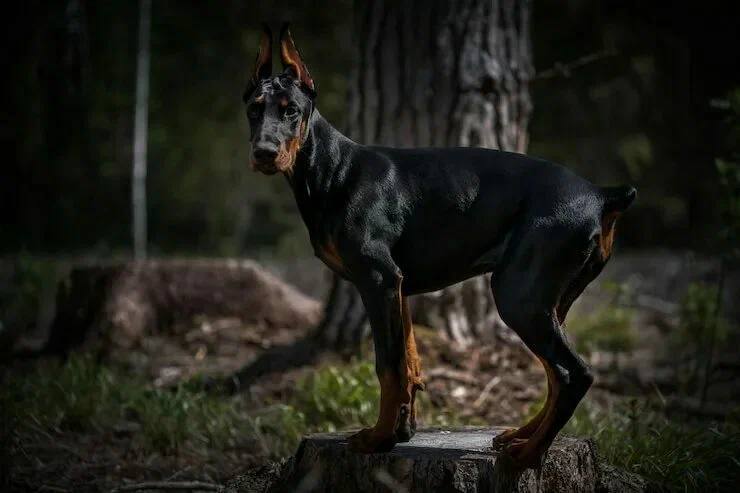
From photos to videos using the example of a Doberman
Prompt for your photo
Choose a plot and movement. The free constructor will collect text for a video model without registration. This is preparation of a prompt, not generation of a video.
Models
Models for reviving photos
The choice depends on the task: realism, dynamics, transitions, advertising clip or quick test.
Prompts
Prompts for reviving photos
First describe the movement, then the limitations and format.
The camera slowly approaches the bottle. The bottle remains motionless. Keep the shape, color and inscription on the label.
Clouds float slowly from left to right. Save the position of the horizon and the silhouettes of the trees. The camera is motionless.
Movement formula
What to describe in a video production
A good query separates object action, camera movement, and constraints.
Indicate one main movement: a person turns his head, a fabric flutters in the wind, a product rotates slowly. Multiple simultaneous activities increase the risk of artifacts.
Add a clear camera technique: a slow approach, a smooth fly-by, or a static shot. Direction and speed are best described separately.
Fix what cannot be changed: face, hands, logo, product shape and background. Before a long video, test the idea on a short generation.
Check the original frame
Choose an image without heavy blur, obscured faces, or accidentally cropped hands. It is better to place an important object further from the edge: then the camera movement will not push it out of the frame.
Set the aspect ratio directly below the publication area. Reels and Shorts usually require a vertical format, while a website or presentation requires a horizontal format.
If a face or object is distorted
The prompt directs the generation, but does not guarantee exact saving of the source file. Before running a paid campaign again, change one condition to understand what affects the result.
The face changes
Try a clearer portrait without too much rotation or obscuring your face. Leave a slight blink or a slight turn instead of walking and complex actions.
Extra details appear
Simplify the movement and background. Do not ask to fly around the camera, rotate the object, and change the location at the same time. The model can finish drawing the invisible side of the object.
The product loses its shape
Start with a static subject and camera movement. If you need an advertising idea, a presenter or several angles of a product, compare ready-made AI advertising tools.
Different models have their own limitations on duration, source files and sound. First check the available settings and costs on the form. Please check important inscriptions and markings separately in the finished video.
Bring a photo to life on your computerAnimate a photo
Select a video model in ClipVision and upload the original image.
Open in MAXVideo from photo