











All models Remove a photo background with Pixelcut
Remove a photo background with Pixelcut
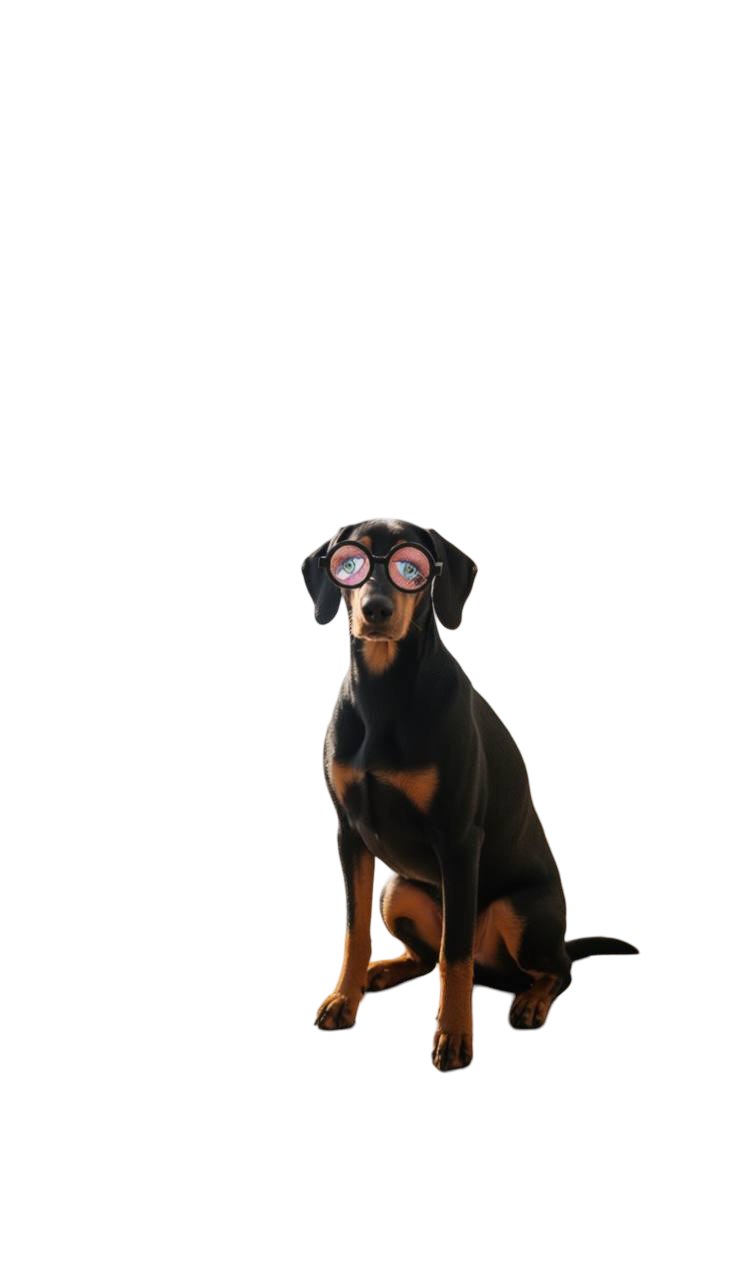
Upload a product photo, portrait or pet photo. Pixelcut separates the subject from its surroundings and returns a transparent PNG. You only need one image and no text prompt.
In the messenger: “All models” → “Images” → the desired tool.

How to get a transparent PNG
- Choose a photo
Upload one JPG or PNG. Keep the entire subject in the frame, including fine details you want to keep.
- Remove the background
Check the price and confirm. Pixelcut finds the outline automatically.
- Download the PNG
On desktop, download the file from the completed task. The photo in a messaging app may be compressed and lose its transparency.
What to do with your cutout
Before launch
How to open Pixelcut: remove background in ClipVision?
On a computer, the button on this page leads to the selected tool. In Telegram or MAX, open the widget, then All Models → Images and select Pixelcut: Background Removal. You may need to sign in to your account.
How much does it cost to work with Pixelcut: background removal?
ClipVision shows the cost of removing the background from one photo before you start.
Why does my transparent PNG look white?
Some image viewers display transparency on white. Place the original PNG over a coloured layer to check. Saving it as a JPEG removes the transparency.